


FTP backup is supported by Backup4all. You can backup your data to a remote computer or device using FTP (File Transfer Protocol) connection. This is a practical remote backup destination as it allows you to store important files offsite. It can be considered as an additional protection against data loss as the result of hardware failure or other disasters.
On this page:
- FTP backup usage
- Recommendations for backing up to FTP
- Using Backup4all to back-up from FTP
- Using Backup4all to back-up to FTP
FTP backup usage
Remote backup to FTP is suitable for:
- Regular users - can be used as a personal remote backup solution, protecting your data against theft, fire or other disasters that could affect your hardware. If you are a dynamic person that travels a lot then an ftp backup is a must because you can access your remote backed up data on the FTP server from any computer, given that you enter the security details known only by you.
- Computer Consultants - if you are an individual or a company that provides consulting services then you can install Backup4all on your clients' computers and set it so that it does automatically the FTP backup. You are sure this way that their important data is backed up. The advantage: there is no need for their manual intervention, not to mention that if you set Backup4all to send email notifications, you will receive information on the status of their backup without visiting directly with them.
- Hosting providers - as a hosting provider, your clients need to know exactly the value they get using your services. Offering a reliable online backup solution increases the value of your service but this also depends on the remote backup software you use. Backup4all is the best choice for your clients given its simplicity and reliability. If you are interested in offering your clients our remote backup software as an online backup solution, contact us at [email protected]
- Companies - even if the company policy includes backing up locally as a must, you have to consider a remote backup solution too. This gives your company an additional security option against natural disasters, theft, fire, local hardware fails.
- Outsourcing companies - if you are outsourcing work to freelancers or other companies, or if you have employees working on different locations, you know that backing up offsite files is very difficult. In the same time, your success depends on their work too, thus you need to use FTP backup to have their work protected.
Using Backup4all you can easily backup to FTP by selecting your FTP server as a destination. You can define the FTP configuration and using the security details that you have (username/password) your data can be backed up onto the FTP server.
Once the connection is defined and tested, you can set this as an automatic schedule with email notifications enabled, to have a fully online backup solution with minimum manual intervention. Advanced features in Backup4all’s FTP backup: SSL encryption, proxy server, passive mode
Recommendations for backing up to FTP
- After each change to the FTP configuration be sure to use the Test function.
- Most FTP servers have rules against hammering (trying repeatedly to connect to an unavailable FTP server with little time between attempts). This is why they require retry times at specific intervals, commonly at least 60 seconds between attempts. They also monitor for computers that hammer and once detected, the server will ban access to the IP address either permanently or for limited time. Thus, when you set the retry times intervals in File -> Options -> Online destinations -> FTP, you should use 60 seconds or more.
- If you backup important data to a remote backup location using FTP backup, encrypt the zip files for increased security. In this case, even if another person manages to gain unauthorized access to the FTP, your files will still be protected.
- When selecting a hosting provider that offers FTP access for your FTP backup, consider these elements too: if they have a backup plan too, if they provide high speed connection and if they have your data on servers with restricted access.
- If your connection to server is frequently interrupted for short periods of time, you can set the wait time and the number of retries to higher values in File -> Options -> Online destinations -> FTP
- If you have a bad Internet connection and you cannot upload large backup files because of the interruptions, you should use the Mirror backup type that resumes the backup only if the internet connection was interrupted, not if you press Cancel.
Using Backup4all to back-up from FTP
Using Backup4all you can also back up files from an FTP location to a local drive. As in Backup4all you cannot add the source files and folders directly from the FTP server, you need an application to map the FTP server as a local drive.
Read this article for more details and step by step instructions about how to backup from FTP: Backup from FTP
Using Backup4all to back-up to FTP
Before using FTP as a destination for backing up, you should define a new FTP configuration using the File -> Options -> Online Destinations -> FTP window. Once defined, you will be able to apply this FTP configuration to individual backup jobs.
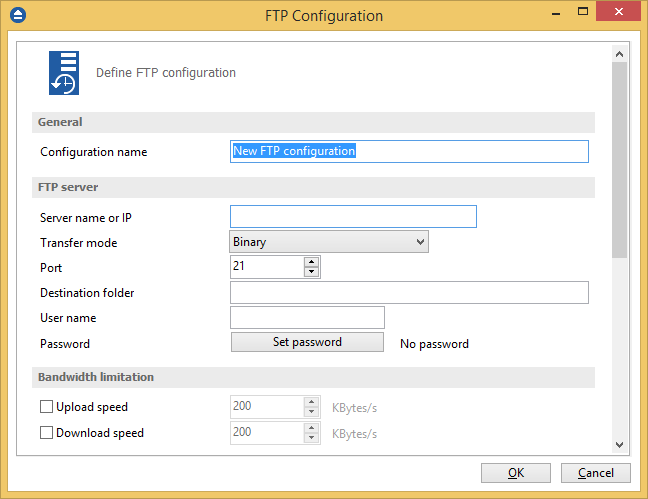
Press the Add button once in File -> Options -> Online Destinations -> FTP to add a new FTP connection. The New FTP configuration name will appear in the list and you can enter the other settings for this connection:
- Configuration name - Enter here an arbitrary name for the connection.
- Server name or IP - In this field you have to enter the name or IP address for the FTP server
- Port - In this field you have to enter the port number if different than the default FTP ports (21).
- Destination folder - Here you can enter the destination path if different than root.
- User name - If this is a private FTP server (no anonymous access allowed) enter the user name for your account.
- Password - In this field enter the password for the FTP server.
There are FTP servers that allow anonymous access (public FTP servers). You can connect to these types of FTP servers using as user name Anonymous and your email address as password. It is not recommended to backup important files to public FTP servers.
In the When destination server is not ready section you can enter the number of attempts and time between those attempts to connect to the FTP server. By default, if the FTP server is not reachable, Backup4all will try 3 times at a 5 seconds delay before aborting the backup. You can increase or decrease these values using the Retry and wait fields.
Additional settings like bandwidth, SSL connection and firewall can also be configured from this page.
Once you have finished defining the connection, press the Test button to check if the FTP details you have entered are correct. If the test was successful, The ftp connection was tested successfully message will be displayed.
Setting the destination to FTP
When defining a new backup job using the New Backup Wizard, select the FTP option in the destination section (1st page of the wizard). If you already have a backup job defined and want to change the destination to FTP, select that backup job, open the Properties window (Ctrl+P), go to the Destination page and select FTP server. After that, go to FTP server page and specify an existing FTP configuration or create a new one.
From the Use existing configuration select an already defined FTP configuration (given that you added one in the File -> Options -> Online Destination -> FTP window). The description of the selected FTP configuration will be listed bellow.
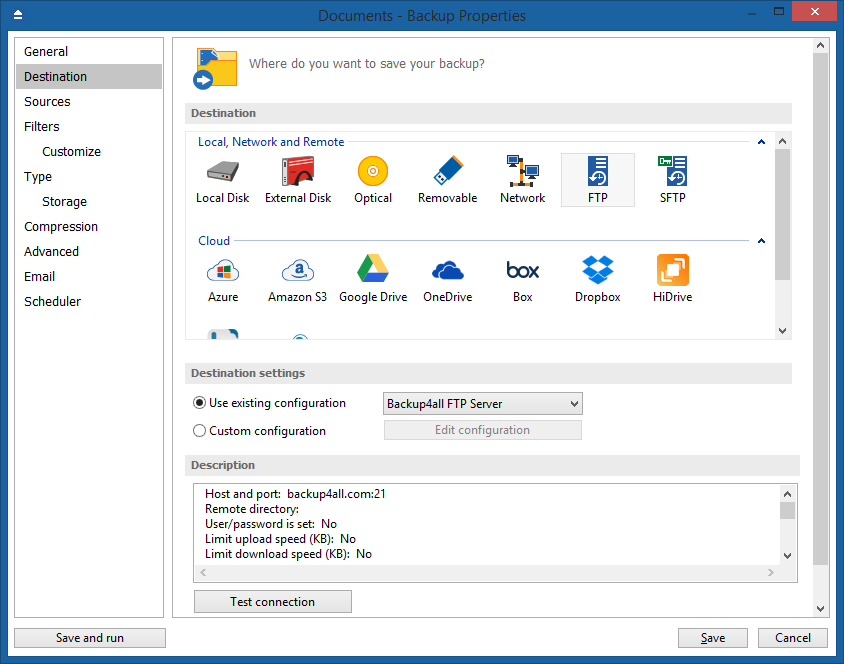
You can change the defined settings by selecting the Custom configuration option and pressing the Edit configuration button. Here you can modify the data in the fields and press OK to save. However, if you do changes, it is recommended to use the Test FTP connection button to see if the FTP settings are correct.
Once you press the OK button, Backup4all will try to connect to the FTP server to see if a backup catalog already exists on the destination. If the FTP destination is not available, a Cannot connect to the FTP server message is displayed in the status bar (bottom of the main window).
In the File -> Options -> Backup window you can set the number of retries and the time between the retries when the FTP server is unavailable (the When destination not ready section).
You can read this article about how to create a new backup job to FTP: How to create a new backup job